Our Location
304 North Cardinal St.
Dorchester Center, MA 02124

304 North Cardinal St.
Dorchester Center, MA 02124

se this interface to create, manage, and delete email accounts for your cPanel account’s domains. You can use an email account to send and receive email messages from your domains.
Note:
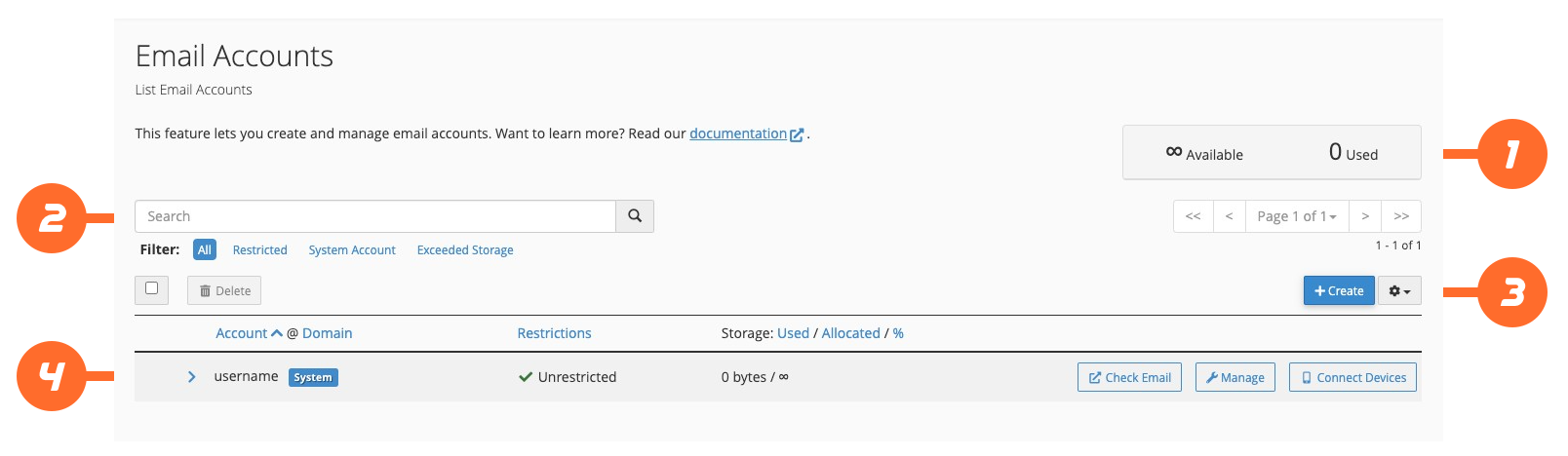
This interface consists of the following:
This area of the interface provides details about your email account quotas. It displays the total number of email accounts you can create. It also lists the current number of created email accounts.
∞) indicates that your account has an unlimited quota.To create a new email account, click Create. A new interface will appear. It displays the account creation settings, as well as your account’s quota status. For more information, read our Create an Email Accountdocumentation.
This table lists all the email accounts on your cPanel account, and lets you perform the following actions:
| Item | Description |
|---|---|
Checkbox ( ) ) | Select the checkbox () to select an email account for bulk actions. You can also select all email accounts using the checkbox at the top of this table. For example, use this to select several email accounts, and then click Delete to remove them. Note:You cannot use this action to select the cPanel account’s system user email account. |
More ( ) ) | Click the more () icon to display more information about an email account. This will display the following information and actions: Restrictions — The account’s restrictions, if any exist.Delete — Click to permanently delete all mail and data for the account. After you click Delete, a confirmation message will appear. Click Delete to remove the account.Warning:You cannot undo this action. You cannot delete the cPanel account’s system user email account. |
| Account @ Domain | Click to perform the following actions: Click Account to sort the list alphabetically by account name.Click Domain to sort the list alphabetically by domain name. |
| Restrictions | Whether there is a restriction for the account. |
| Storage: Used / Allocated / % | Click Used, Allocated, or the percent symbol (%) to sort the table by that item. These labels are the amount, the limit, and the percentage of disk space data quota usage. |
| The actions column | Click an action to perform the desired task. |
| Action | Description |
|---|---|
| Check Email | Click to check an email account’s mail. A new interface will appear that displays the account in Webmail. |
| Manage | Click to edit an existing email account’s quota, password, and other properties in cPanel’s Manage Email Accounts interface (cPanel » Home » Email » Manage Email Accounts). A new interface will appear. There are two types of email accounts: the Default system user email account, and all other email accounts.There are separate interfaces for both types of email accounts. |
| Connect Devices | Click to configure mail client access in cPanel’s Set Up Mail Client interface (cPanel » Home » Email » Set Up Mail Client). A new interface will appear. |
You can perform several additional actions while you use the email accounts table:
 ) icon.
  ) to select the number of entries you want to display per page. You can also refresh the table results.