Our Location
304 North Cardinal St.
Dorchester Center, MA 02124

304 North Cardinal St.
Dorchester Center, MA 02124

As you may know, if the mail service is unauthenticated, you can face the following issues:
In the first case, the recipient mail server looks up the SPF record of your domain, and if it is not added / does not match the actual outgoing server IP address, such mail delivery will fail. This checking mechanism is implemented in order to make sure email comes from a legitimate sender and verified sender.
The second situation takes place when there is no SPF/DKIM configured for your domain, or they are configured incorrectly, which lets an unauthorized party forge emails using the @yourdomain.com mailbox. Such cases are called mail spoofing.
Email Deliverability is an effective set of anti-spoofing and anti-spamming tools available in cPanel.
The Email Deliverability table displays your cPanel account domains and allows you to address any existing problems with your mail-related DNS records – SPF and DKIM.
Nowadays, the vast majority of spam emails have fake data in the «From» field. Spammers and fraudsters use special tools to send their mail on behalf of a real owner of the email address.
SPF record (an acronym for Sender Policy Framework) is an effective and simple method that allows you to avoid such issues. If your domain name has the correct SPF record, then you can be sure nobody can send fake emails on behalf of your domain name.
The main idea of the SPF record is that an owner of a domain name publishes the information about IP addresses that are authorized to send mail from this domain name. The receiving server compares the information in the envelope sender address with the information published by the domain name owner. If these details match, then the email is delivered.
NOTES:
DKIM (DomainKeys Identified Mail) is another way of email authentication. This method uses information about the domain which is published by the domain owner. That information allows the receiving server to verify if the email message was sent by the legal owner of that domain name.
Once the TXT record, which contains DKIM, is added to the DNS zone, a special code is added to the headers of outgoing emails. Receiving servers compare these headers with the information in the DNS zone, and if it matches, then the email is delivered.
NOTE: DomainKeys(DK) and DomainKeys Identified Mail (DKIM) are separate things.
DomainKeys(DK) are not available on our shared servers as DK implementation was converted to DKIM and extended in a number of ways as of cPanel 11.32 and later releases.
Some of the differences between DomainKeys and DKIM include:
If having DomainKeys for you is a must, we suggest upgrading to a VPS/Dedicated server where you will be able to set up this feature.
These simple actions will make you sure that no one can send spam on your behalf and your email will not be delivered to spam folders.
In order to configure the SPF and DKIM records, follow the instructions below:
Log in to cPanel > the Email section > the Email Deliverability menu.
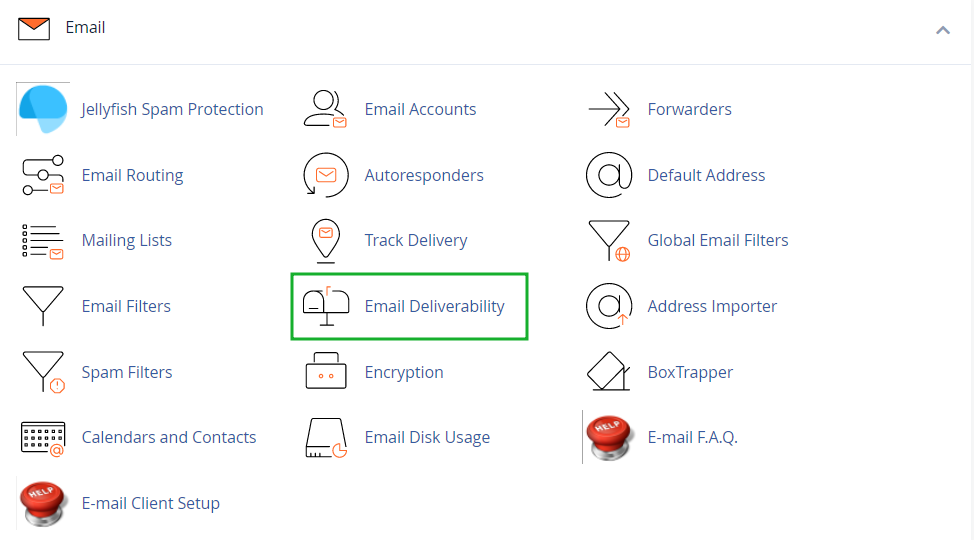
This section allows you to perform the following actions:
1. Repair — this feature allows the system to repair domain invalid records:
NOTES:
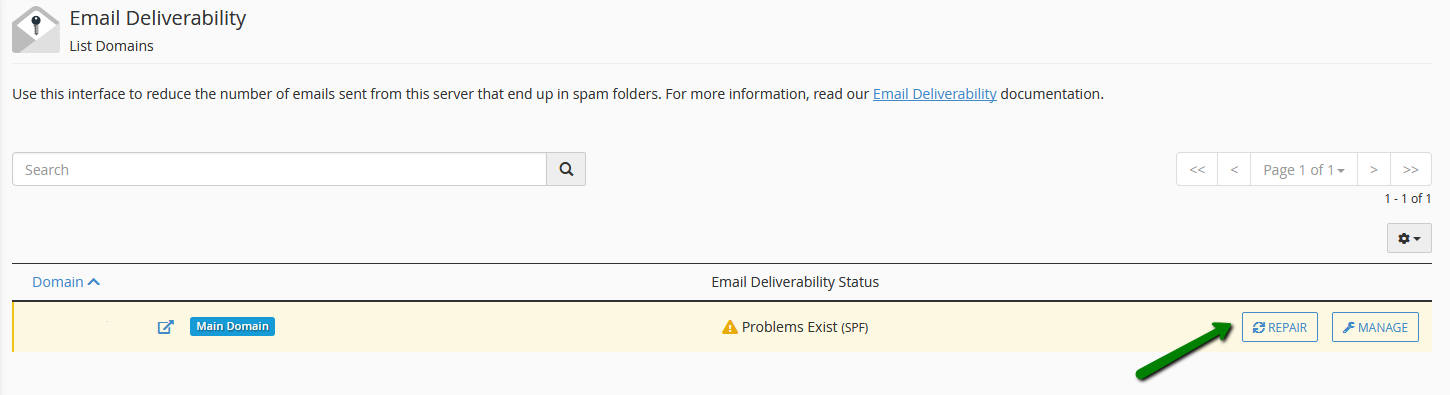
In the window that appears upon clicking Repair, you can review and confirm the system recommendations for any invalid records. You can also Copy or Customize a suggested record before you approve the system repairs. Click on Repair and the records will be added to the DNS zone of the domain/subdomain automatically.
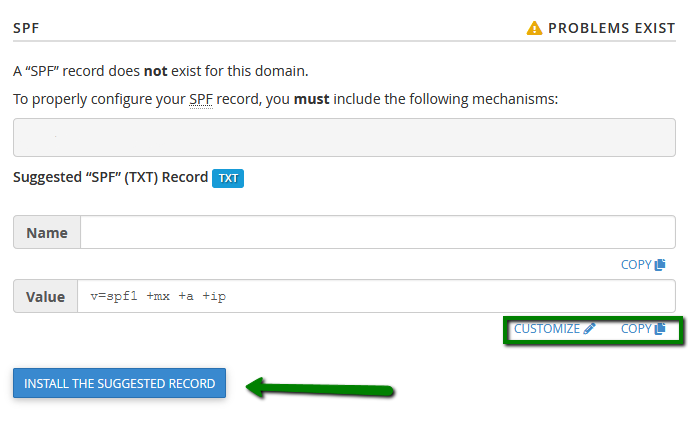
This process can take up to five minutes depending on the server. When the records are set up, you will receive a corresponding success message.
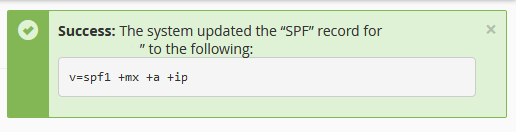
Allow some time for the records to propagate and refresh the page afterwards. The Email Deliverability Status will be then changed to Valid:
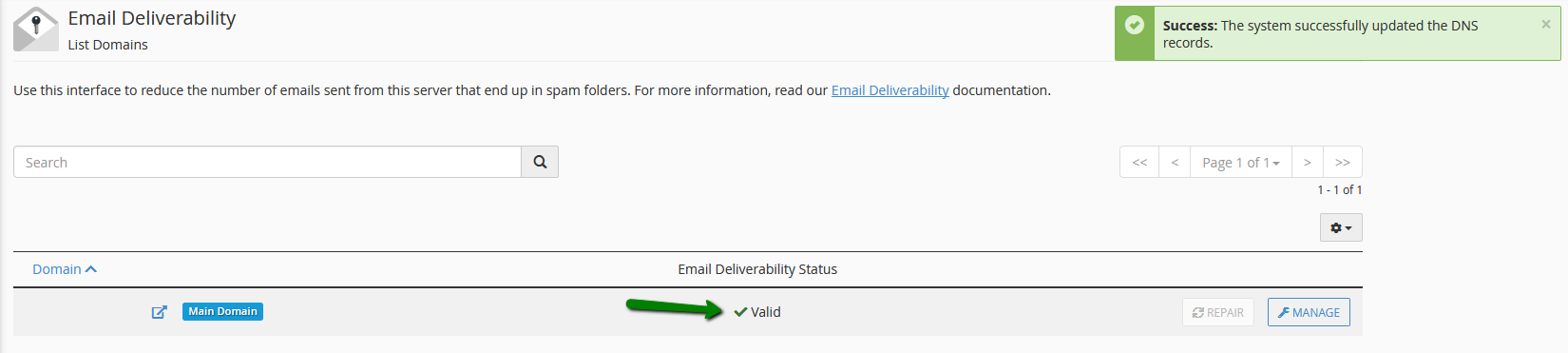
2. Manage – this option allows you to manually configure the mail-related DNS records of a domain.
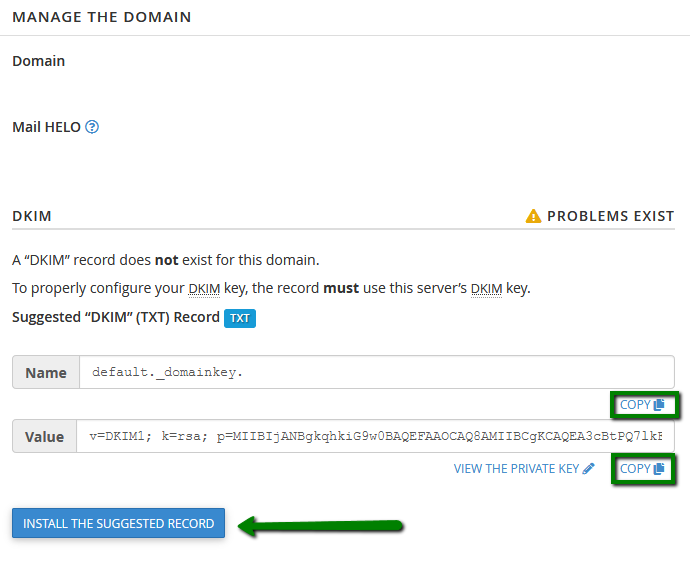
The Manage the Domain section already displays the properly-configured DKIM and SPF record values. So in most cases, you just need to Copy them and paste manually to the DNS zone of your domain. Alternatively, you can click Install the suggested record to have the SPF and DKIM records added to the DNS zone automatically:
NOTE: The Install the suggested record option is available only in case your domain name is pointed to our Shared hosting nameservers.
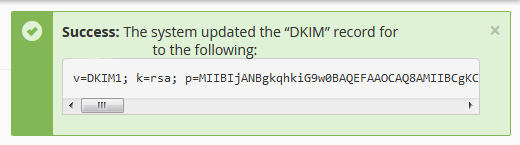
After the record is installed, you will receive the confirmation message:
In the SPF section, you will also have the option to Customize the SPF record recommended for a domain by the system.
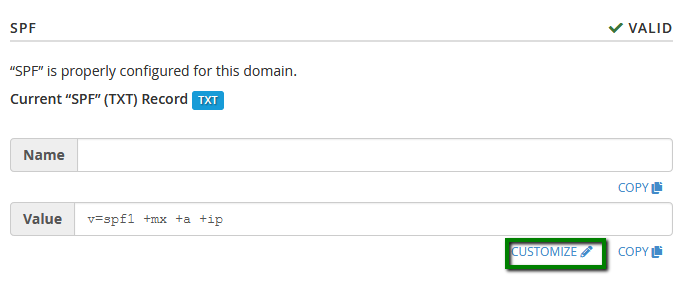
The interface displays the domain current SPF name and value in the Current “SPF” (TXT) Record section if one exists as well as the system recommendations in the Suggested “SPF” (TXT) Record section:
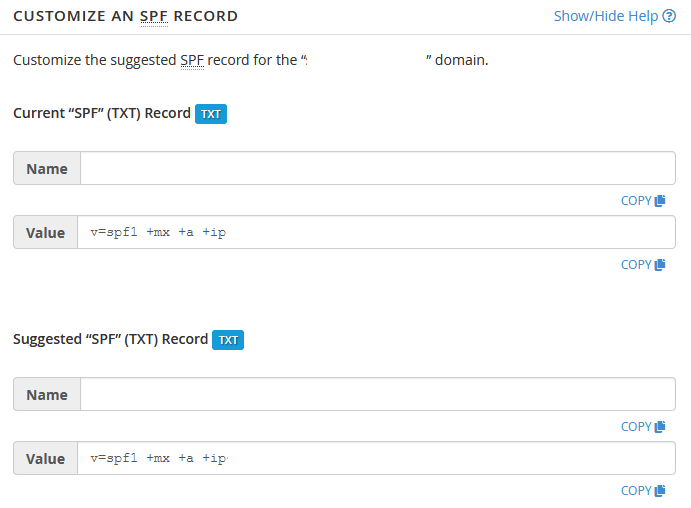
You can configure the following settings:
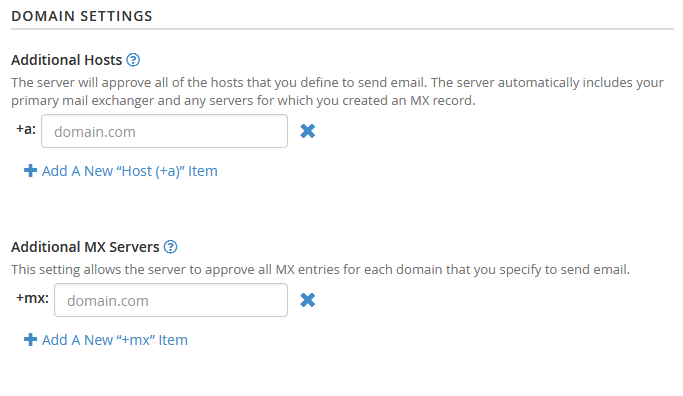
1. Domain Settings – this section allows you to define the hosts or MX servers allowed to send mail from your domain:
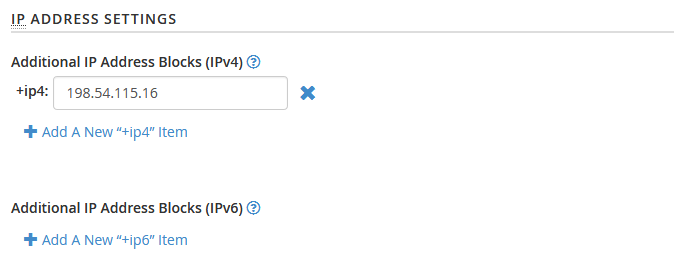
2. IP Address Settings – this section allows you to add additional IP Address blocks to your SPF record. The system automatically includes your server main IPv4 or IPv6 addresses in these lists:
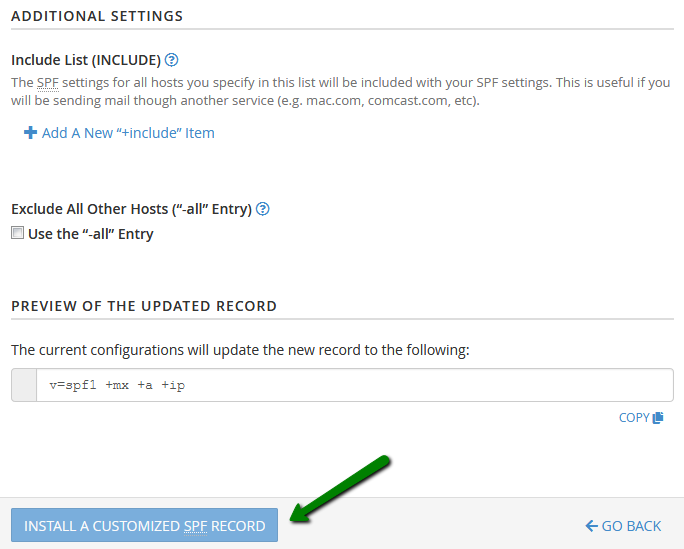
3. Additional Settings – this section allows you to modify additional SPF record settings.
4. Preview of the Updated Record– this section displays what the updated SPF record will look like, based on its current modifications. Click the Install a Customized SPF Record tab to install the new record:
That’s it!